





Settings is where you manage your account, connections, sites, emails, plan and team. This article walks through each section in the order the left-hand menu shows them.
Account
Profile. Change your display name, upload a photo (under 2 MB) and set your Timezone. Dates across Verand, and in the emails we send, use that zone. Your email is your sign-in identity and can't be changed here.
Password. If you signed up with a magic link or Google, the card reads Add a password: set one (at least 8 characters) and you can sign in with it from then on, from the Password tab on the sign-in page. Once you've signed in on a browser, the sign-in page remembers that address and how you used it, so next time you pick it from a list; the × beside it removes it from that browser. The email link and Google keep working as well. Email sign-in and sign-up include a quick automatic check that a person is signing in; usually you won't see it. If the page says We couldn't confirm this browser, wait a moment and try again, and reload the page if it keeps happening. If you open an email sign-in link in a different browser or device from the one you asked for it in, Verand asks first: You're about to sign in as your address, with a Continue button. If the address isn't yours, close the page: someone sent you a link to their own account. Once you have one, the same card reads Change password. A password can only be added here, by a signed-in account: there's no way to create an account with one.
Integrations
Your connections are grouped into Analytics & Search (Google Search Console and Google Analytics), Site access (the Site Audit Crawler Access card), Publishing (WordPress and GitHub), Connected apps (the MCP connections card) and Developer. Connecting your site, The MCP connector and AI crawlers blocked by your host cover them in detail. The Webflow and Webhooks cards are marked Coming soon and don't do anything yet.
Who can change Search Console and Google Analytics. A site's Google connection uses the Google account of whoever connected it, and that account can often see other businesses too. So only the account owner, an admin, or the person who connected it can pick a different property, reconnect it with another Google account, or disconnect it. Anyone else on the team sees the chosen property and Only the account owner, an admin, or the person who connected this Google account can change it. Any member can connect Google for a site that isn't connected yet. A property on another domain (a related brand, say) is fine to pick.
GA4 Hostnames. Once a GA4 property is selected, its card shows a Hostnames row: the addresses visits landed on, like app.example.com. Leave one out if your property also tracks your app or a help centre. The row reads All counted or tells you what's left out. Click Edit to see each address with its sessions over the last 28 days, and untick any you don't want counted. Your own domain always counts, and addresses on another domain are never counted.
When the property tracks a subdomain nobody has decided on yet, Verand asks you once above the row: Leave it out or Keep counting it. Conversions always count from every address, whatever you choose here.
Sites
Each site's card shows its pages, audit score, competitors, industry, jurisdiction and country. Every site on your plan is Active, meaning it's crawled and scanned whether or not you're looking at it. The one you're in now is marked Currently viewing.
Manage → (or Switch & manage →) opens that site's Home.
Add a site runs the same setup as your first one: a full crawl, its voice, its competitors and its compliance packs. Your plan's articles, keywords and AI-visibility prompts are shared across all your sites, not added per site. During your trial, a second site unlocks when the trial converts.
Removing a site is a request, not a delete. The ✕ on a card (shown when you have more than one site) asks you to type the domain, then sends the request to us. Nothing is deleted at that point: we confirm by email first, and the site keeps running until then.
Changing industry or jurisdiction needs support for now, because it re-runs compliance-pack assignment.
If you hid the getting-started checklist on Home, Show it again brings it back from this page.
Notifications
These switches control Verand's optional emails. They're per person, all on by default, and they only reach the account owner and admins: an editor sees the switches but isn't sent these emails.
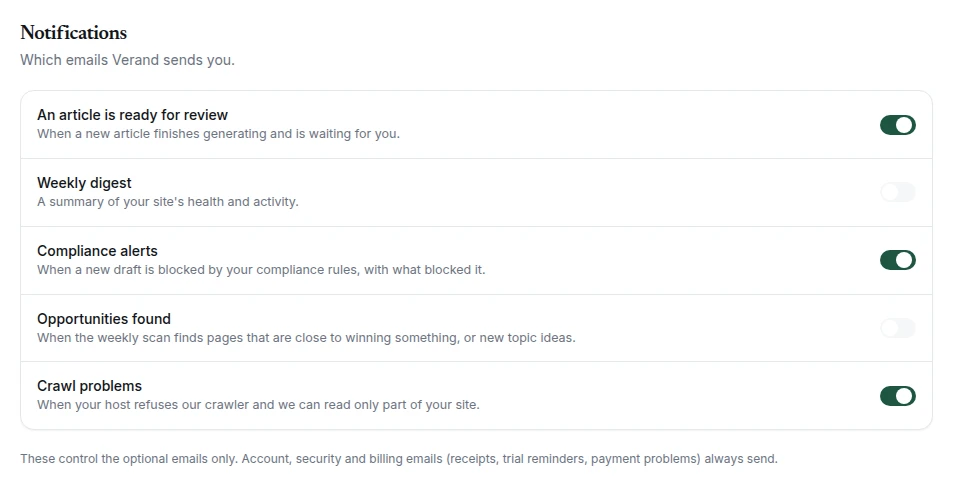
An article is ready for review. Sent when an article finishes generating and is waiting for you. It names the article and links straight to the draft.
Compliance alerts. Sent when a draft is stopped at the compliance gate. It lists up to five of the items blocking it and links to the draft, where each one is marked. This is a separate switch on purpose: turning off review emails doesn't silence a block.
Weekly digest. Mondays at 08:00 UTC, one per site: articles published this week, drafts awaiting you, critical issues, your health score, the most severe issue found, and your total open issues. It's skipped in a week with nothing to report, and you won't get one in your first week.
Opportunities found. Tuesdays at 08:00 UTC, one per site. It lists up to four pages close to winning something, such as a query you nearly rank for or a snippet you could take, plus up to three new Topic ideas: articles your site is missing, each with its format, monthly searches (or "Low search data"), its angle and the page it builds on. It only includes what you haven't already been sent, and nothing goes out in a week with nothing new.
Crawl problems. Sent when your host refused our crawler and the crawl could read less than 90% of your site. It names the host when we can tell, and links to the steps to let us through. You hear about it once: if the next crawl is partial too, we don't email again.
What always sends. Account, security and billing emails ignore these switches: receipts, trial reminders, payment problems, team invites, Directory Citations order updates, and the one-off note when your first article goes live. Our occasional emails about getting more from Verand carry their own unsubscribe link instead.
Plan & Usage
The Current plan card shows your plan, price and renewal date, with Manage billing (payment method, invoices, receipts and cancelling) and Change plan. Below it, Usage this month shows each meter against its limit: articles and rewrites, content refreshes, tracked competitors for this site, tracked keywords, sources backfilled, AI-visibility prompts, sites and team seats. During a trial, the trial cap shows alongside the number your plan unlocks. The Author Bio Pro card is here too. Billing, changing plans and cancelling covers billing, and Plans, limits and your trial covers the limits.
Team
Team seats shows how many of your plan's seats are used: 3 on Starter, 5 on Growth, 10 on Professional and unlimited on Agency. Pending invites count as used, because each one holds a seat until it's accepted, declined or expires.
Inviting someone. Enter their email, pick a role and click Invite. They get an invite email. They join only once they sign in with that address and click Accept; until then they can also decline. An invite expires after 7 days. An expired invite stays in the list marked Expired, holds no seat, and has a Resend button that restarts its 7 days (inviting the same address again does the same). If your seats are all used or invited, the invite is refused until you free one.
Roles.
- Owner: everything, including changing roles and removing members. There's one owner, and that role can't be changed or removed here.
- Admin: can invite people and revoke pending invites, but can't change roles or remove members.
- Editor: works on content, with no team management.
If someone accepts an invite when the plan is already full (for example after a move to a smaller plan), they still join, but as read-only rather than taking a seat you don't have. Read-only members carry a Read-only tag in the list and don't count against your seats.